How We Monitor Websites
Learn how website monitoring works, what our uptime checks actually test, which network tools help you troubleshoot DNS, routing, speed, and server errors, and how related website status categories group outages by service type.
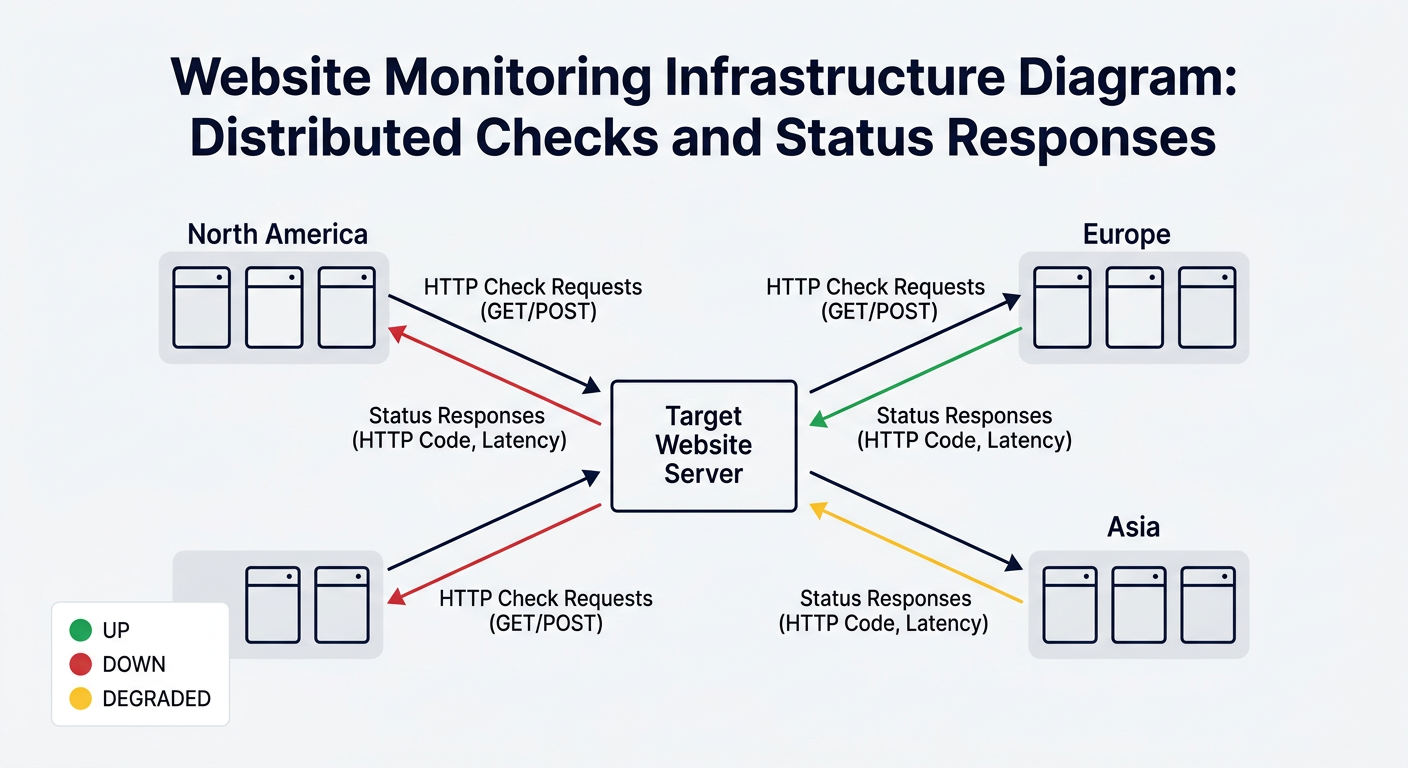
Monitoring Servers
We maintain a distributed network of monitoring servers across multiple geographic regions worldwide. This global approach allows us to detect issues from different parts of the internet and identify location-specific problems. Our servers are hosted on reliable cloud infrastructure to ensure consistent, uninterrupted monitoring.
Global Coverage
Servers distributed across North America, Europe, and Asia-Pacific regions — see broader regional signals on the global status map.
What We Test
Our monitoring system performs multiple types of health checks on each website to provide a comprehensive view of service status:
HTTPS/HTTP Response
Connects to the website and verifies it responds with a valid HTTP status code (typically 200-299 for success)
TCP Connection
Verifies the server accepts connections on the standard web ports (80 for HTTP, 443 for HTTPS)
DNS Resolution
Confirms the domain name resolves to a valid IP address
Check Frequency
Our monitoring system operates on an on-demand basis, providing real-time status checks when you request them. This approach offers several advantages:
Instant Results
Get status updates within seconds of your request
Current Status
Always checking from the latest state, never cached outdated results
Multiple Checks
We perform multiple connection attempts to differentiate between temporary glitches and real outages
Performance Measurement
Beyond simple up/down status, we measure response latency to detect performance degradation. If a site is responding slowly (typically >5 seconds), we mark it as "DEGRADED" to alert you to issues that might not be a complete outage but still impact user experience.
What does "website down" actually mean?
"The site is down" sounds simple, but there are actually several distinct failure modes — each with a different cause, a different location in the network stack, and a different fix.
Server not responding
The domain resolves to an IP address and the network path is open, but the server on the other end never replies. This can mean the web server process has crashed, the machine is overloaded and dropping connections, or the server has been shut down. From a user's perspective it looks like the page just hangs and eventually times out.
DNS not resolving
Before a browser can connect to a server it needs to translate the domain name (e.g. youtube.com) into an IP address. If the DNS lookup fails — because the domain has expired, DNS records are misconfigured, or the authoritative name server is unreachable — the connection never even starts. Browsers typically show this as "Server not found" or DNS_PROBE_FINISHED_NXDOMAIN.
Network unreachable
The domain resolves fine, but the data packets can't reach the destination. This happens when a routing failure somewhere between the client and the server blocks transit — for example a BGP routing incident, a firewall dropping packets, a DDoS attack saturating links, or a physical cable cut. The server may be perfectly healthy but invisible from certain networks or regions.
Application errors
The server is reachable and accepts the connection, but the web application itself fails to produce a valid response — returning a 500 Internal Server Error, 503 Service Unavailable, or similar 5xx code. The underlying cause is usually a bug, a database outage, a misconfigured deployment, or the application running out of memory or connections. The server is "up" at the network level but "down" from the user's point of view.
Why a website may work for others but not you
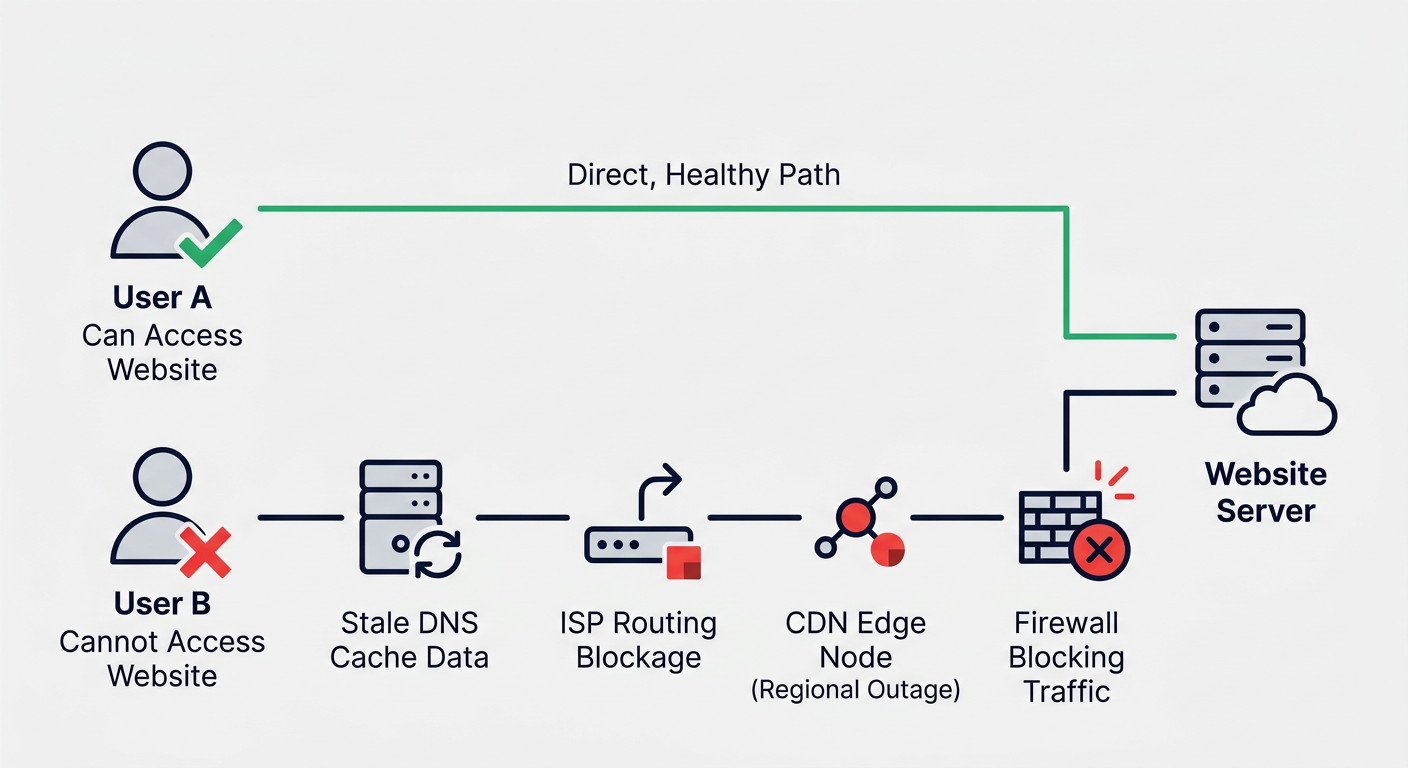
Even when a website is technically online and reachable from most of the world, you may still be unable to access it. This is more common than you might think, and usually one of these causes is responsible:
DNS cache issues
Your device, router, or ISP caches DNS lookups to speed up browsing. If a site recently changed its IP address, your local cache may still point to the old one — causing connection failures. Flushing your DNS cache or waiting for it to expire usually resolves this.
ISP routing problems
Internet traffic travels through many networks before reaching its destination. If there's a routing issue at your ISP or along the path between you and the server, you may be unable to reach a site that is otherwise perfectly accessible from other networks or countries.
Regional CDN edge failure
Many websites use Content Delivery Networks (CDNs) to serve content from servers close to users. If a CDN edge node in your region fails or has degraded performance, users in that area experience problems while users elsewhere — served by different edge nodes — are unaffected.
IP blocking or rate limiting
Websites may block specific IP addresses or IP ranges — for example due to abuse, geographic restrictions, or security policies. If your IP address (or your ISP's address range) has been blocked, you won't be able to connect even though the site is online for everyone else.
Firewall or antivirus blocking
Local security software, corporate network firewalls, or parental controls can silently block access to certain websites or domains. The site may be fully operational, but your device or network is intercepting and blocking the connection before it ever reaches the server.
VPN interference
Using a VPN routes your traffic through another server, which changes your apparent IP address and location. Some websites block VPN exit nodes, and some VPN servers themselves have routing or DNS issues. Disconnecting your VPN — or switching to a different server — can often restore access.
Browser cache or cookies
Corrupted or outdated files stored in your browser cache can prevent a page from loading correctly. Similarly, invalid or expired session cookies can cause authentication failures or redirect loops. Clearing your browser cache and cookies, or trying a private/incognito window, can help isolate whether this is the cause.
Common website error messages explained
Browser and server error messages can be confusing. Here's what the most common ones actually mean, who is responsible, and what you can do.
500 Internal Server Error
What it means: Something went wrong on the web server while processing your request. The server encountered an unexpected condition and couldn't complete it.
Who's responsible: The server. This is not caused by anything you did.
What to try: Refresh the page after a minute or two — these errors are often temporary and resolve on their own. If it persists, the site owner needs to investigate their server logs.
502 Bad Gateway
What it means: A server acting as a gateway or proxy received an invalid response from an upstream server. This typically happens when one backend service can't communicate with another.
Who's responsible: The server. Often caused by overloaded infrastructure, a crashed application server, or a deployment in progress.
What to try: Wait a few minutes and try again. 502 errors during high-traffic events (product launches, live streams) usually resolve quickly.
503 Service Unavailable
What it means: The server is currently unable to handle the request. This usually means the server is temporarily overloaded or down for maintenance.
Who's responsible: The server. This is intentionally returned when a service knows it cannot process requests right now.
What to try: Check the site's official status page if one exists. Otherwise, wait and try again — planned maintenance windows are usually short. Avoid repeatedly refreshing, as it can worsen server load.
504 Gateway Timeout
What it means: A gateway server didn't receive a timely response from an upstream server. The request was passed on but no answer came back within the allowed time limit.
Who's responsible: The server. Often seen during heavy load, network congestion between internal services, or database slowdowns.
What to try: Refresh after a short wait. If you were submitting a form or making a purchase, check whether the action actually went through before retrying, to avoid duplicates.
DNS_PROBE_FINISHED_NXDOMAIN
What it means: Your browser couldn't resolve the domain name to an IP address. "NXDOMAIN" stands for "non-existent domain" — the DNS system returned no result for that hostname.
Who's responsible: Could be either side. The domain may have expired or been misconfigured, but it can also be caused by a local DNS cache problem, a faulty DNS server on your network, or a typo in the URL.
What to try: Double-check the URL for typos. Try flushing your DNS cache, switching to a public DNS server (such as 1.1.1.1 or 8.8.8.8), or testing on a different network. If others can reach the site fine, the issue is likely local to your device or network.
Use the SiteAlive dashboard for ongoing monitoring
The public status tools help you investigate a problem right now, but the website monitoring dashboard is where ongoing monitoring happens. It is built for people who want to watch their own sites over time instead of checking manually whenever something feels wrong.
Track your own websites
Add your domains, see their latest status, and keep your monitored sites in one place instead of running one-off checks every time.
Get alerts when something changes
The dashboard can notify you when a site goes down or recovers, helping you react faster to outages and degraded performance.
Review uptime history
See recent checks, status history, and performance signals so you can spot patterns instead of relying on guesswork.
Choose the plan that fits
Start with the free dashboard for one site, then move to Pro or Scale if you need more monitored sites, faster checks, and more coverage.
If you want automatic monitoring instead of occasional troubleshooting, the dashboard is the best next step.
Explore website monitoringWhich network tool should you use?
Not every outage looks the same. Some problems begin with DNS, some appear as routing failures, and others are really slow application responses. These tools help you narrow the problem down much faster.
If the site will not load at all
Start with DNS Lookup to confirm the domain resolves, then use Ping Test and Traceroute to see whether the host is reachable and where the path breaks.
If the site resolves but feels slow
Use Website Speed Test and HTTP Headers to see whether the server is responding slowly, redirecting too much, or returning cache and CDN signals that explain the delay.
If you suspect a DNS problem
Pair DNS Lookup with DNS Propagation to check both the record values and whether recent DNS changes have reached different locations yet.
If you need more server context
Website IP Lookup, IP Lookup, Website Intelligence, and Website Security Scanner help you understand the infrastructure, owner signals, IP details, and configuration around a failing site.
You can also browse the full network tools directory for deeper troubleshooting workflows.
FAQ
What does it mean when a website is down?
A website can be down because DNS is failing, the server is unreachable, the network path is broken, or the application is returning errors even though the server still responds.
Why does a website work for other people but not for me?
That usually points to a local or regional issue such as stale DNS cache, ISP routing problems, CDN edge issues, firewall blocking, VPN interference, or browser cache and cookie problems.
What is the best first tool to use when a site will not load?
Start with DNS Lookup to confirm the domain resolves, then use Ping Test and Traceroute to see whether the host is reachable and where connectivity starts to fail.
How do I check if a slow website is degraded rather than fully down?
Use Website Speed Test and HTTP Headers to confirm whether the site still responds but is performing poorly, timing out, redirecting too much, or returning unexpected server behavior.
How do I verify whether DNS changes have finished propagating?
Use DNS Propagation to compare resolver results across regions and confirm whether updated records have reached the wider internet.
Further reading & sources
Authoritative technical references for DNS, HTTP, and web infrastructure topics covered on this page.
DNS
The original DNS specification from the Internet Engineering Task Force.
Plain-language explanation of the Domain Name System.
ICANN's official explainer on how the Domain Name System works.
HTTP status codes
The official specification for all HTTP response status codes.
Developer-friendly reference with examples for every status code.
Web infrastructure
How content delivery networks work and why edge nodes matter.
In-depth technical guide to browser rendering and network requests.
What network latency is and how it affects page load times.
About SiteAlive
SiteAlive is a free website status monitoring service. It lets anyone instantly check whether a website is down for everyone or just for them — without creating an account, installing anything, or waiting.
How long monitoring runs
Monitoring is on-demand rather than continuous. When you check a site, we immediately run a set of probes from our servers. The result is stored and contributes to the site's historical record. Popular and frequently checked sites accumulate a richer history over time, making it easier to spot recurring patterns or degradation trends.
What checks are performed
Every check includes an HTTP/HTTPS request to verify the server responds, a TCP connection test to confirm the port is open, and a DNS resolution check to ensure the domain resolves to a valid IP address. We also measure response latency. If a site responds but takes more than 5 seconds, it is marked as DEGRADED rather than UP — indicating a real problem even without a full outage.
How user reports are used
On every site status page, visitors can report whether the site is working or broken for them personally. These reports are aggregated and displayed alongside our server-side results. They help distinguish between a global outage (our servers AND users both can't reach the site) and a local connectivity issue (our servers see it as UP but some users report problems). User reports are never linked to personal accounts or identities.
Have questions about our monitoring? Learn more about how it works.